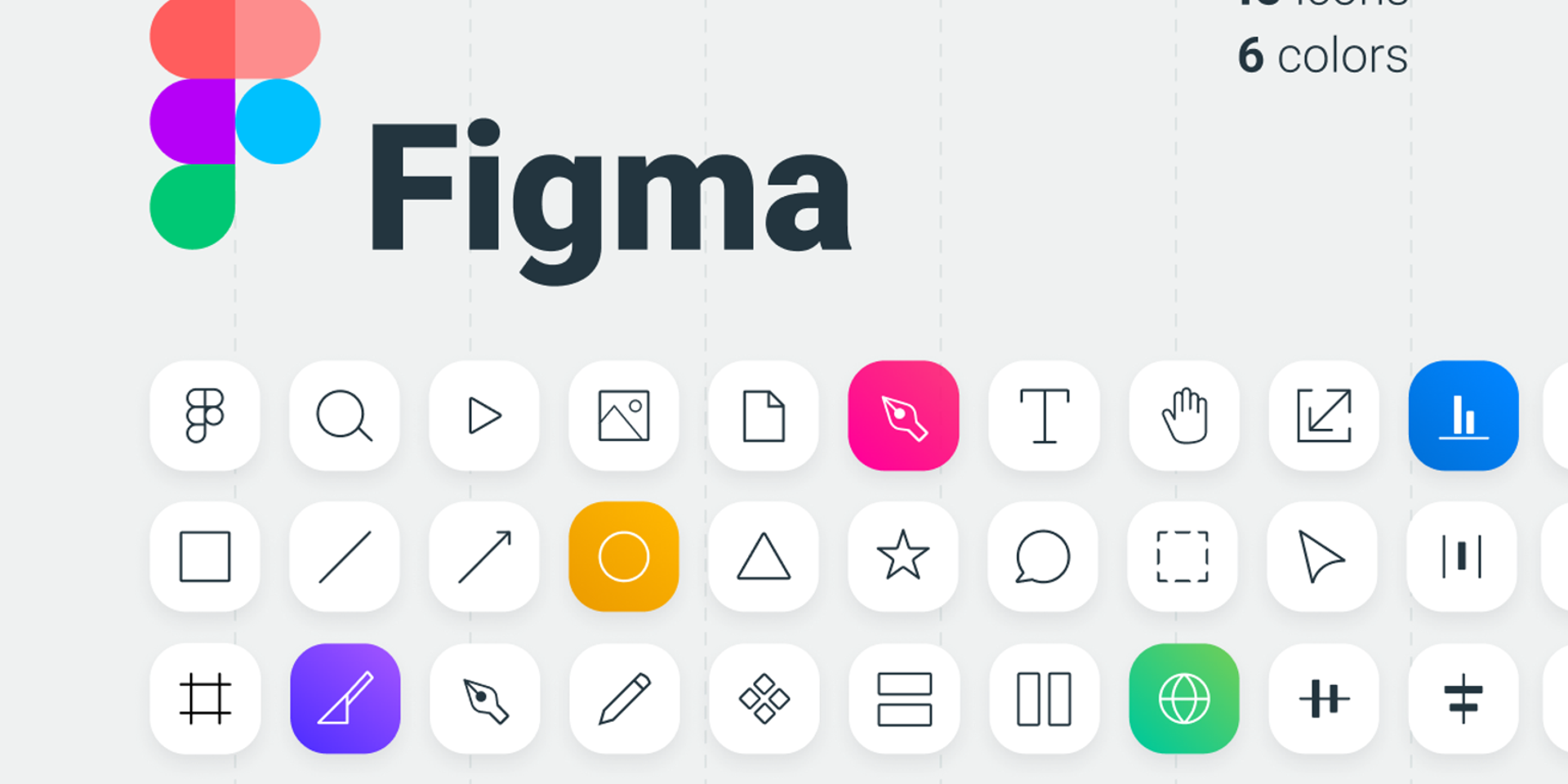
Starting out in UI/UX? Mastering Figma tool could be your smartest move yet. Yet tossing on shapes and slapping down text won’t cut it. For work that feels sharp and smooth, dig into the tools that give Figma its rhythm and reach.
Start here if you’re new to Figma – this covers what actually matters. Think of it as learning the tools people rely on daily at work. Each part helps speed up your process while keeping designs tight and polished. Skip the extras; just focus on these basics first.
Table of Contents
Frames and Layouts Figma Tool Explained
Start anywhere in Figma – frames come first. Picture one as a box that holds your work. Think of it as a whole page, part of a layout, or just a tiny piece. Inside this boundary, designs take shape.
Start with frames to keep your work neat from the beginning. A site or app feels more put together when pieces fit just right. Think of each section like a container holding everything where it should be. Done well, alignment happens naturally across pages. Structure shows up clearly without extra effort. Order comes through even in complex parts.
Most new designers skip layout basics. Yet mastering frame-based organization opens the door to polished interfaces. Structure comes before style every time.
Auto Layout Adjusts Design for Any Screen
What makes Figma stand out? Auto layout. When text grows or shrinks, items shift on their own. This keeps everything aligned without manual tweaks. The system responds as content updates happen.
Take a button. Stuff extra words into it. Watch how the container stretches just right, keeps its shape. Spacing stays even across pieces nearby. Everything holds together, smooth, no cracks showing.
Most folks find this tool handy when building layouts for various devices. Mastering auto layout tends to speed things up, making the whole process smoother. Then again, it just clicks once you get the rhythm.
Components for Reusability
Start anywhere. Buttons, bars, cards – reuse them across projects. Think of pieces that fit together, like puzzle parts. These bits show up again and again. Navigation menus? Forms? Same idea. Build once, use many times. No need to start from nothing each time. They stick around, ready when needed.
A single version sits at the center, built just one time but used again and again across your work. Whenever that central piece changes, every copy shifts without extra steps.
Most folks find it cuts down effort while keeping visuals uniform. When teams work on actual builds, reusable pieces keep everything aligned behind the scenes.
Variants for Advanced Components
One way to handle multiple looks for a single piece is through variants. These build on components by letting each one shift between versions. A button might look pressed, waiting, or turned off – each state saved separately. Think of them as snapshots tied to one base part. They keep changes organized without needing new items every time. Each version stays linked to the original setup.
A button might look different when idle, under cursor, or pressed. One way to handle this: skip making individual pieces for every version, use variant groups inside a single unit instead.
Staying tidy here helps when dealing with tricky interface parts. A clear layout means less trouble down the line.
Prototyping in Interaction Design
Figma handles more than flat visuals. Through it, clickable models come alive – mimicking how people actually move through apps.
Start by linking various screens together when building a prototype. Moving between pages becomes clear once paths are set up. Motion effects slip in naturally, helping actions seem lifelike. Flow gains depth when changes happen smoothly.
Before building, try it out – this step checks how well the design works. A smoother journey for users starts here.
Responsive Behavior Constraints
When a frame changes size, constraints shape how items inside respond. Think of it this way: one item might hold steady in the middle, another could hug the left edge, while a third grows wide to fill the space.
When setting up layouts for various screens, this helps avoid constant tweaking by hand. Designs shift smoothly across gadgets thanks to its built-in flexibility.
When you know the limits, building interfaces that grow and adapt becomes easier. What shapes design choices often hides in restrictions. Working within bounds can lead to smarter layouts. Every limit points toward a better way to structure screens. Constraints guide how elements fit together over time.
Styles for Consistency
One way to handle design choices is through styles – these save settings like color or font looks. When you need that shade of blue, pull it from a central spot rather than picking it each time. A change in one place updates every piece using it. Think of effects or spacing as presets tucked away for quick access. Repeating steps slows work; reusing cuts the loop. Naming these keeps things clear without rewriting details. It’s less about doing more, more about doing once.
Updating a style means every element using it changes too. Big projects benefit most because keeping things uniform matters more there.
Styles are a key part of building a design system.
Plugins Add Features
Figma runs on add-ons built by others – each one nudging its power further. These tools chip in when you need text drafts, drop in icons, shape grids, or smooth out how you move through work.
Starting out? Tools like these cut down effort on tricky jobs. Once skills build up, trying stronger versions opens new ways to shape work.
Collaboration and Comments
Working together live in Figma means more than one person edits a file at once. Feedback shows up right on the screen, thanks to notes added by teammates.
Most work groups rely on it when creators, coders, or customers must stay in sync. Sometimes clarity matters most when roles differ but goals match. A shared space helps even if people think differently.
By gathering every comment together, it clears up misunderstandings. One spot holds everything instead of pieces scattered far apart.
Final Thoughts
What makes Figma stand out isn’t just raw capability – clarity in using key functions reveals its real strength. Though auto layout may seem minor at first, mastering it shapes how smoothly everything else fits together. Components aren’t add-ons; instead, they form the backbone of consistent, reusable design pieces. Because prototyping links screens into flows, ideas gain movement without leaving the workspace. Styles do more than save time – they lock down visual rules so changes stay predictable across files. Without these elements working together, even sharp concepts can fall apart in execution.
Start slow. Pick one feature at a time, then try it out in actual work. Each small step builds skill through practice. Real tasks teach what tutorials can’t. Doing things yourself shapes better understanding. Over time, confidence grows without needing to rush. Experience comes from making, fixing, repeating.
Getting good at these tools means working quicker, keeping things uniform, while building layouts people find easy to use – something that matters when so many designers aim for attention. A solid grasp lets your work stay clean under pressure, even as projects grow complex without losing clarity along the way. Skills like these separate quick drafts from lasting designs others remember later.