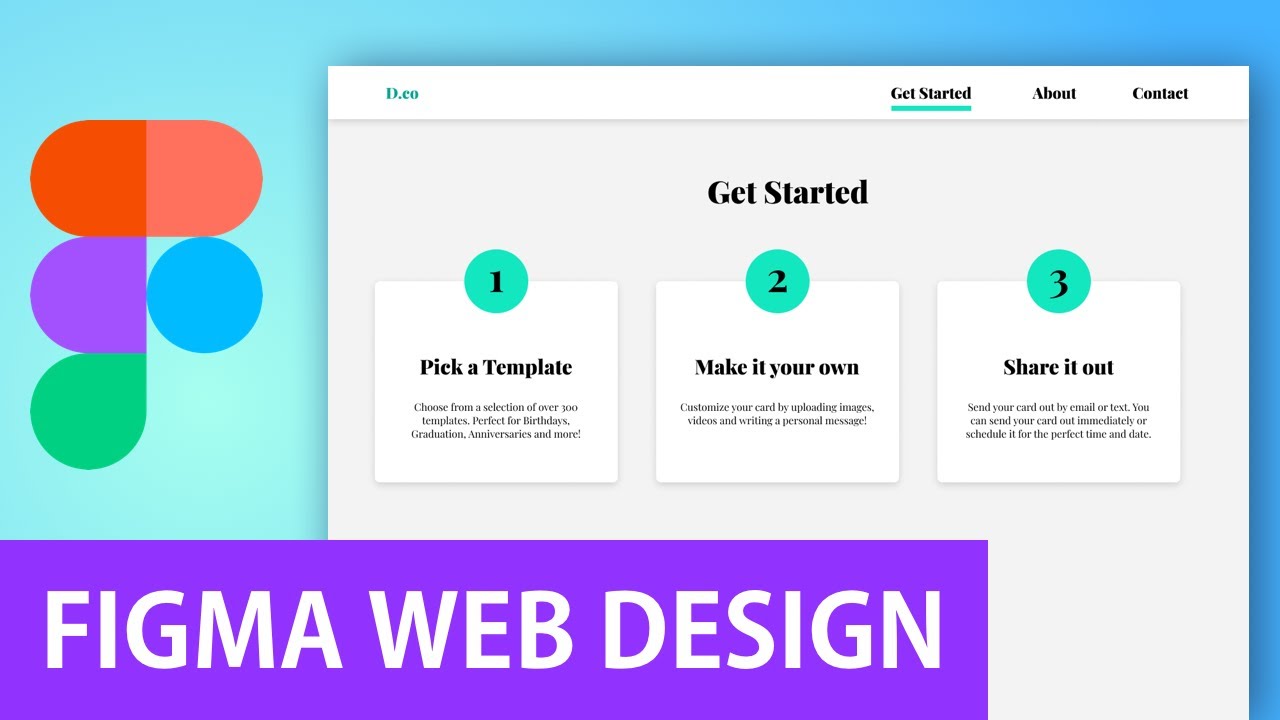
Beauty alone won’t carry a website. Structure shapes how people move through it, while consistency keeps them comfortable along the way. Instead of juggling tools, creators now have one place where flexibility meets precision – Figma fits that role well. What used to take scattered efforts can grow in a single environment built for real tasks.
Start with a rough thought. Picture how pages might look when built piece by piece inside Figma. Move forward slowly – first sketching boxes, then shaping details. Each part grows clearer after testing placement, colors, spacing. Real designers follow steps like these every day on actual jobs. The path stays steady: imagine, draft, adjust, repeat until structure clicks into place.
Table of Contents
knowing the project before design begins
Start by getting clear on the project before touching Figma. Knowing the kind of site matters – so does knowing who it’s for. The primary purpose? That shapes everything that follows. What drives the design isn’t just preference – it’s user need. Clarity comes first, tools come later.
A single look at a portfolio site shows it highlights creations. Yet shopping sites push items straight to buyers. Knowing this shapes how pages are built, what parts appear, even fonts chosen.
Most times, missing this part brings messy results that miss what users actually want.
Creating a Wireframe
Start by sketching out a layout inside Figma. That rough outline shows where elements go – no color, pictures, or fancy design yet. It just maps the bare bones of your site.
Starting off, it looks at where things sit – like headers or footers. Not concerned with colors or fonts, just positioning matters here. Navigation bars appear in fixed spots, set by this approach. The hero part takes center stage, placed deliberately. Content zones follow a clear logic, never random. Footer comes last, always grounded at the bottom.
Starting with a wireframe means sketching out how pages will work without touching colors or fonts. This way, thinking stays focused on layout instead of looks. A clear setup early on prevents messy changes later. Structure gets built first, so decisions make sense down the line.
Setting Up Frames in Figma
Start anywhere in Figma – frames come first. Think of one as a canvas, sort of a blank stage for your layout. On it, pieces take shape, slowly forming what you envision.
A website often begins with a desktop layout built ahead of anything else. When aiming for flexibility across devices, include separate layouts meant for tablets or phones too.
Start with clean frames to keep everything lined up just right. A steady rhythm between elements comes naturally when frames guide the layout. Structure finds its pace where boundaries are clear. Order shows up quietly in well-placed containers.
Designing the layout structure of website
With the wireframe set, building the real layout begins. Sections take shape – hero spot first, then features follow. Testimonials come after that, linked by flow. The footer lands at the end, holding it all together.
Now comes the part where pieces find their right spots, with gaps set just so. Clean lines show up when balance matters more than stuffing things in. Users move through without tripping over clutter. Spacing works quietly, like breath between words.
Staying steady matters a lot since it helps people feel more comfortable while also giving the layout a clean touch. A predictable flow keeps things running smoothly instead of confusing visitors with surprises.
Adding typography and colors
Once the layout’s set, typefaces enter alongside color choices. How words look shapes how easily they’re understood – so font decisions matter just as much as where things sit on screen.
Start with fonts that fit what the site is trying to do. For titles, go bold – make them stand out without effort. The words people read most? Keep those plain and smooth on the eyes.
Start with shades that echo what the brand stands for. Picking the right mix lifts how things look, shaping how people see it. Instead of just grabbing bright tones, think about feelings they bring. Harmony in hues makes an image stick – quiet but clear.
Using Components to Reuse Code
Imagine building blocks that fit anywhere – Figma’s components work just like that. These pieces, once made, show up again without starting over. Think buttons, menus, little info boxes – they all stick around. Each time you need one, it’s already there, waiting.
One time built, then used again and again throughout the work. That single piece shows up wherever needed without rebuilding it each moment. Its presence stays consistent simply because it was made just once at first. Every appearance after that pulls from the original version directly. This way, repetition happens without extra effort or new versions appearing.
Every time the main part gets updated, every copy changes right after. Because of that, nothing falls out of sync across the project.
Apply Auto Layout for Responsive Design
When things shift inside a frame, auto layout keeps everything lined up without extra effort. This part of Figma reacts instantly as elements grow or shrink.
Take a button. Stuff extra words into it. The container grows just right, keeping everything clean. That happens because the system adjusts space on its own.
When designing sites that adjust smoothly across devices, this tool comes in handy. Screen size changes? It handles them without extra effort. Smooth performance shows up whether you’re on phone, tablet, or desktop.
Adding images and visual elements
Once the layout and look are ready, toss in pictures or symbols along with visual bits. That kind of detail pulls viewers in while grounding the whole appearance.
Still, tossing in too many pictures risks muddying the layout. A screen packed with extras might feel noisy instead of clear.
Most folks find simple layouts easier to use. What stands out? Clarity often wins over clutter. Balance matters more than people think. Smooth interaction usually follows clear structure. Fewer distractions lead somewhere: straight to function.
Create a prototype
After finishing the layout, move into building a working model. This stage helps link separate views using clickable pathways that show how things flow together.
A single button up front might point toward reaching out – or exploring what’s sold. That setup walks through real use, much like someone would later click around.
Pictures of how it works show problems early, long before coding begins.
Review and refine the website design
Now comes a look at the full layout from start to finish. Spacing gets checked first, then how pieces line up across sections. Colors are examined one by one alongside font choices. Structure matters just as much, holding everything together behind the scenes.
A different set of eyes might catch what you overlooked, so hearing from others matters.
Most strong design comes from repeated tweaks, not first tries. A solid version often shows up after several rounds of changes. Each pass sharpens what felt rough earlier. The last step usually means trimming more than adding. Final choices tend to arrive when nothing else needs fixing.
Final Thoughts
Starting with a clear plan helps shape how the site will look in Figma. Wireframes come next, sketching out where things go without details. Layouts build on those sketches using spacing and alignment to guide the eye. Style choices like colors and fonts add personality after structure exists. Prototypes link screens so interactions feel real before coding begins. Every phase matters when building something usable and polished.
Pieces fit together easily because Figma gives teams smart building blocks. With features that adjust on their own, spacing stays clean without extra effort. People work side by side instantly, seeing changes as they happen. Tools shaped around how designers think keep things moving steadily forward.
Start here, move through each phase slowly – this way leads to websites that feel fresh, clear, sharp, yet built for actual use. Step by step, it unfolds naturally into something solid.
Getting good at this process moves you closer to working as a real UI/UX designer in the modern tech world.
Also Check Figma Explained – Best Designing Tool – Guide 2026